
Innovating Lead Generation, Serving Businesses & Marketers Worldwide

In multi-question forms, you may find it beneficial to indicate a respondent's answer to a previous question. Answer piping allows you to recall a respondent's answers from earlier questions and insert them into subsequent questions in your LeadGen form.
Any responses you collect on your form can be used to tailor the form experience. For example, after collecting a respondent's brand name (as shown in the image below), you may include it in a text block, and it will automatically insert the answer in real time.

Now add the next question, and you get to see the insert variable option, which is adding the answer piping. You just need to click on the variable and save the settings.
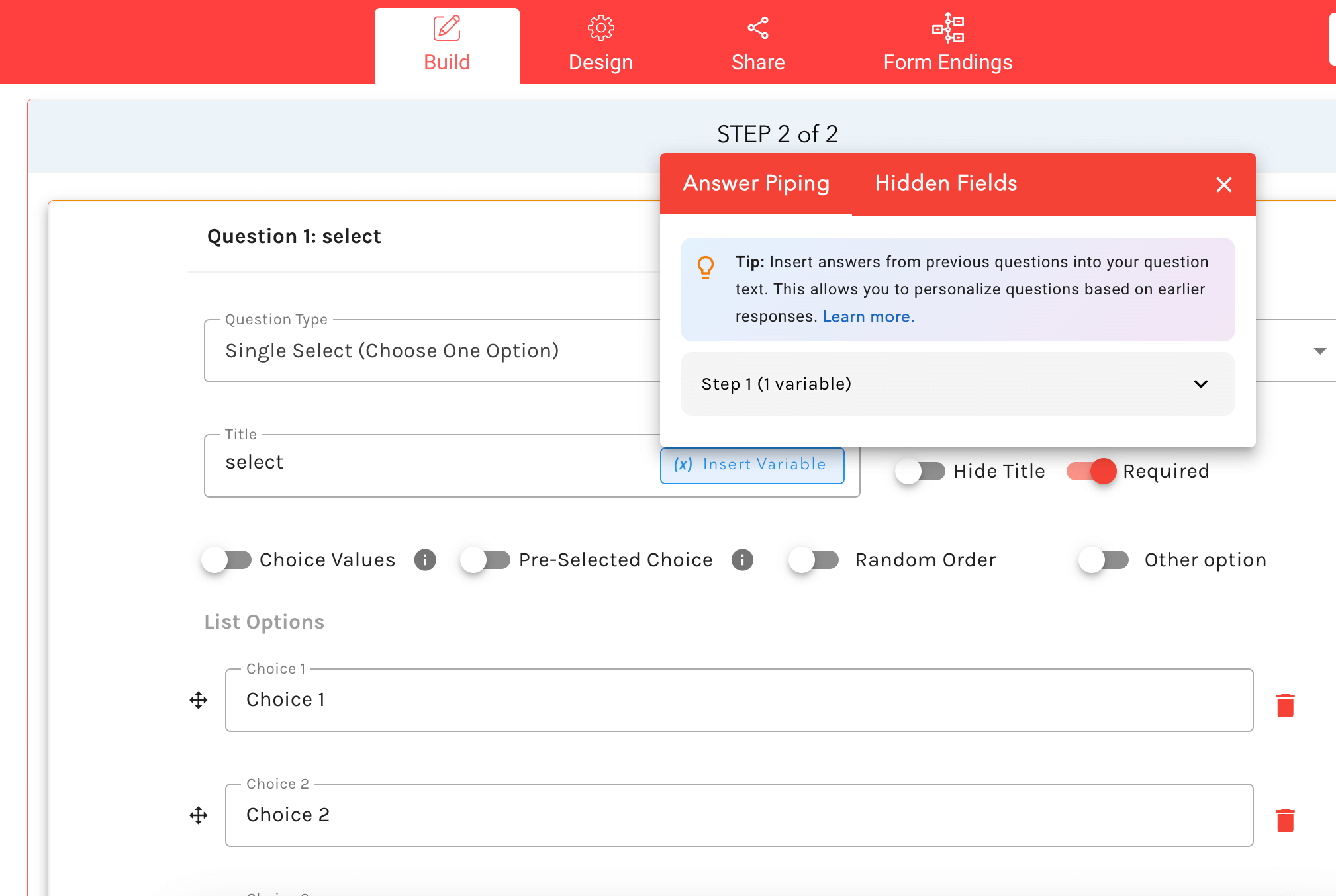
The most typical application of answer piping is to utilize a respondent's name to address them personally in the form.To achieve this, you must first ask the responder for their name. In the example below, we created a short response block by entering /short and asking "Your brand name."

Then, please add the next question in the next step. In the section where you wish to address the respondent by name, you get to see the insert variable option, which adds the answer piping. You just need to click on the variable and save the settings.

You can now see a personalized way of asking questions based on your previous answer.
Input fields (answers to questions)Hidden fields (mention data you already have)Calculated fields (mention calculated prices or scores)
TextTitlesLabelsQuestionsThank you pages
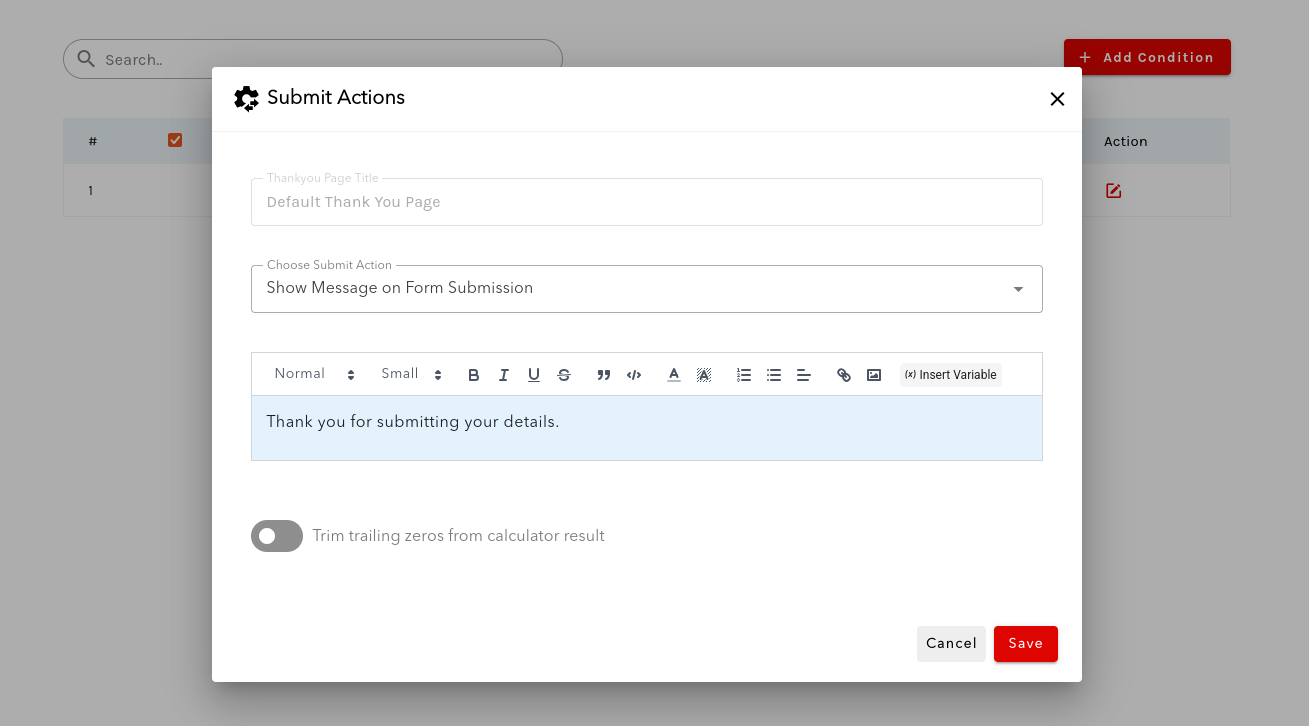
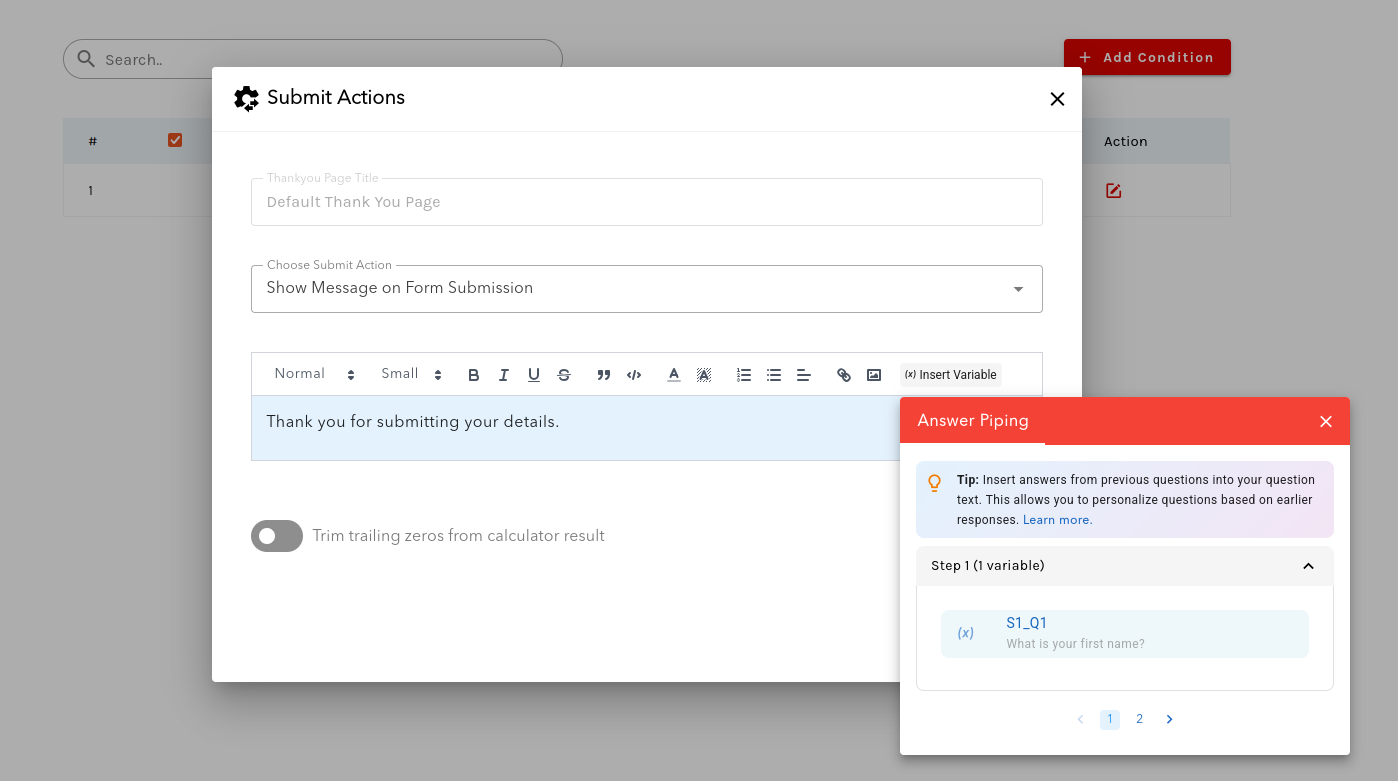
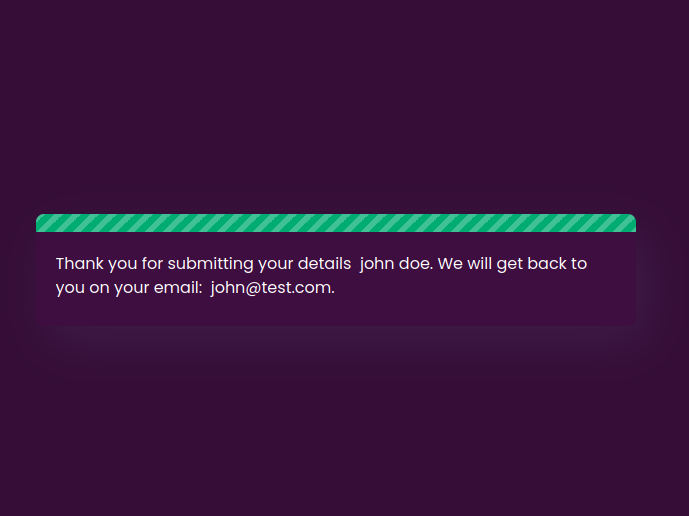
Answer Piping lets you insert hidden field values into your form text, creating personalised experiences.
Example: "Hi {{name}} welcome to LeadGen Form"
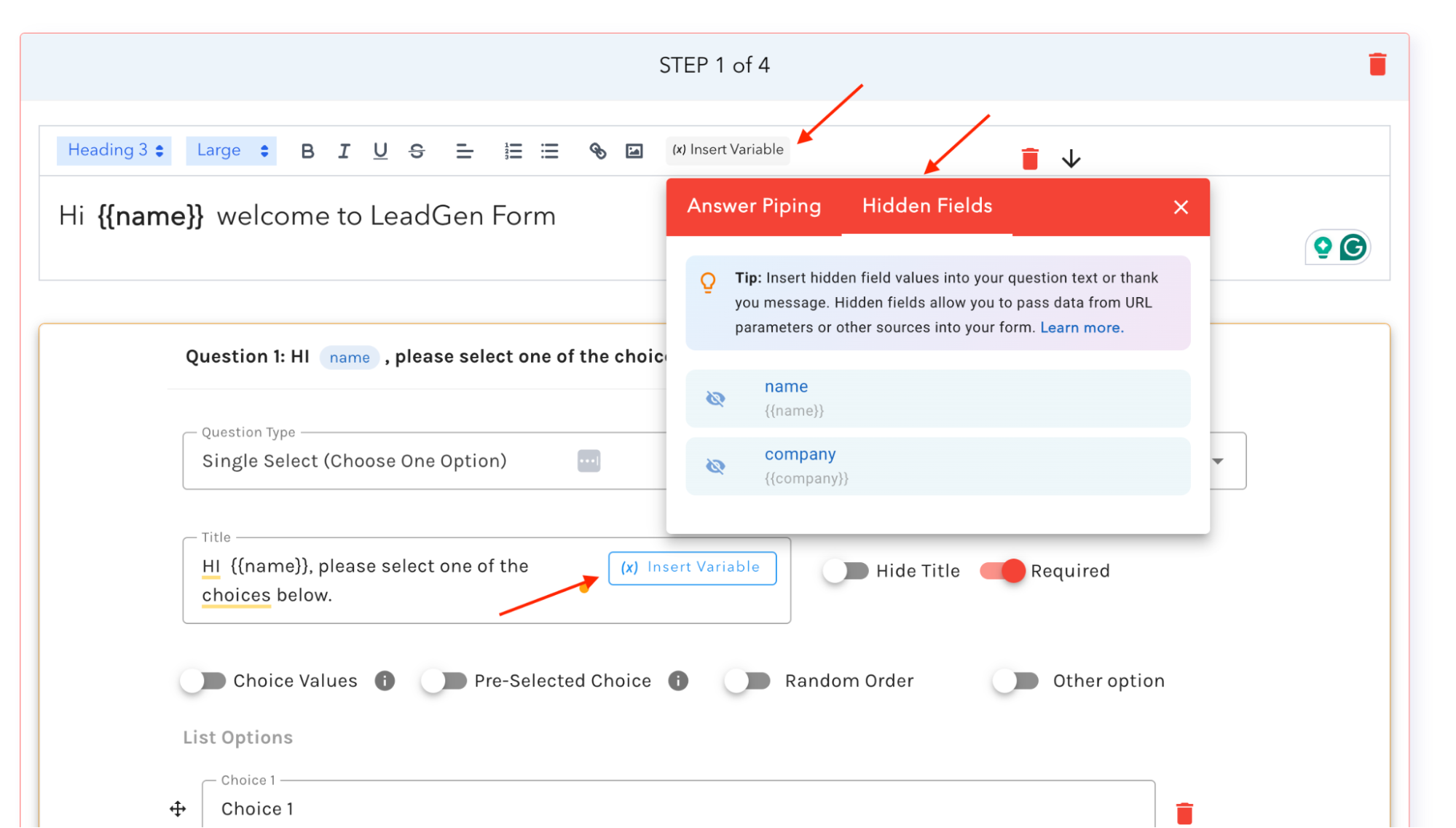
Add URL ParametersWhen you open the form with URL parameters, the variables will be replaced:URL: https://yoursite.com/form?name=Sarah&company=AcmeResult: "Hi Sarah, welcome to LeadGen Form."


