With LeadGen, it's easy to create multi-step forms without any coding skills. Here are the steps to create a multi-step form from scratch:
Multi-step forms are online forms that present questions across different steps. Firstly, open up the forms page in LeadGen App and click on the button to add a new form.
When you are inside the form builder, LeadGen will automatically create a first form step for you. In there, you can specify your question by choosing a question type, your question title, description, and answer choices.
If you now want to add more steps to your form, simply scroll to the end of the first step and click the red “+” button. This will add a new step to your form. You can add as many steps as you like using this simple button on your form steps.
There is no limit to the number of questions presented within a form step. You can add multiple questions for each step. To add questions within steps, simply scroll to the bottom of the previous question and click on the appearing orange “+” button.
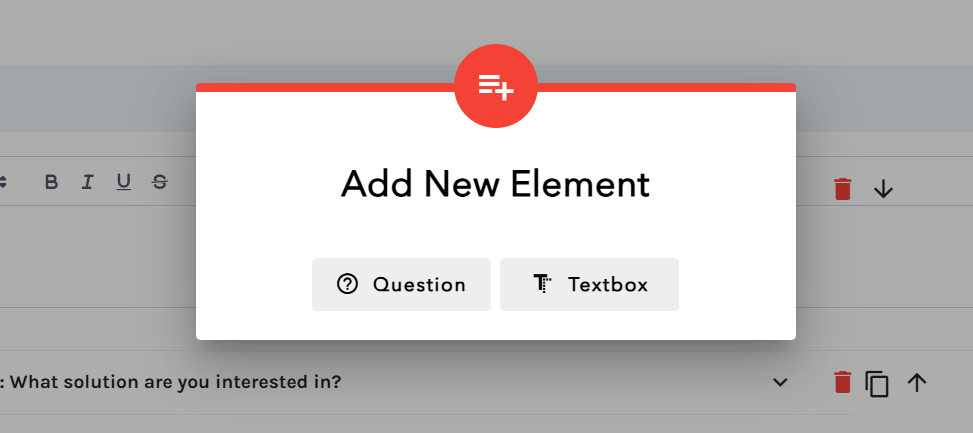
In the pop-up selection screen, choose “Question”.
If you like to add a textbox to be displayed on your step, e.g. above or below the question(s), then simply click on the orange “+” button and click on “Textbox”.Once you build your form with different questions and steps, simply hit the create button and save your form.To get an overview of the full process of steps to create LeadGen forms, check out our starter guide here.
Any Question Left?
Message us via the chat window in the bottom right of the page and we will answer any of your questions!