
Innovating Lead Generation, Serving Businesses & Marketers Worldwide

Here in this guide, you will see how to change Canvas Background color and Form Background color of your form. Follow the instructions below to achieve this.
Colors are an essential part of any brand, and this article will help you adapt the look and feel of a form and bring it closer to your brand guidelines.You will learn how to change the two most important colors on the form. The first one is the canvas, which is the bottom layer, representing the outer edges. The second one is the form background, which sits on top of the canvas layer and is behind everything on your form.
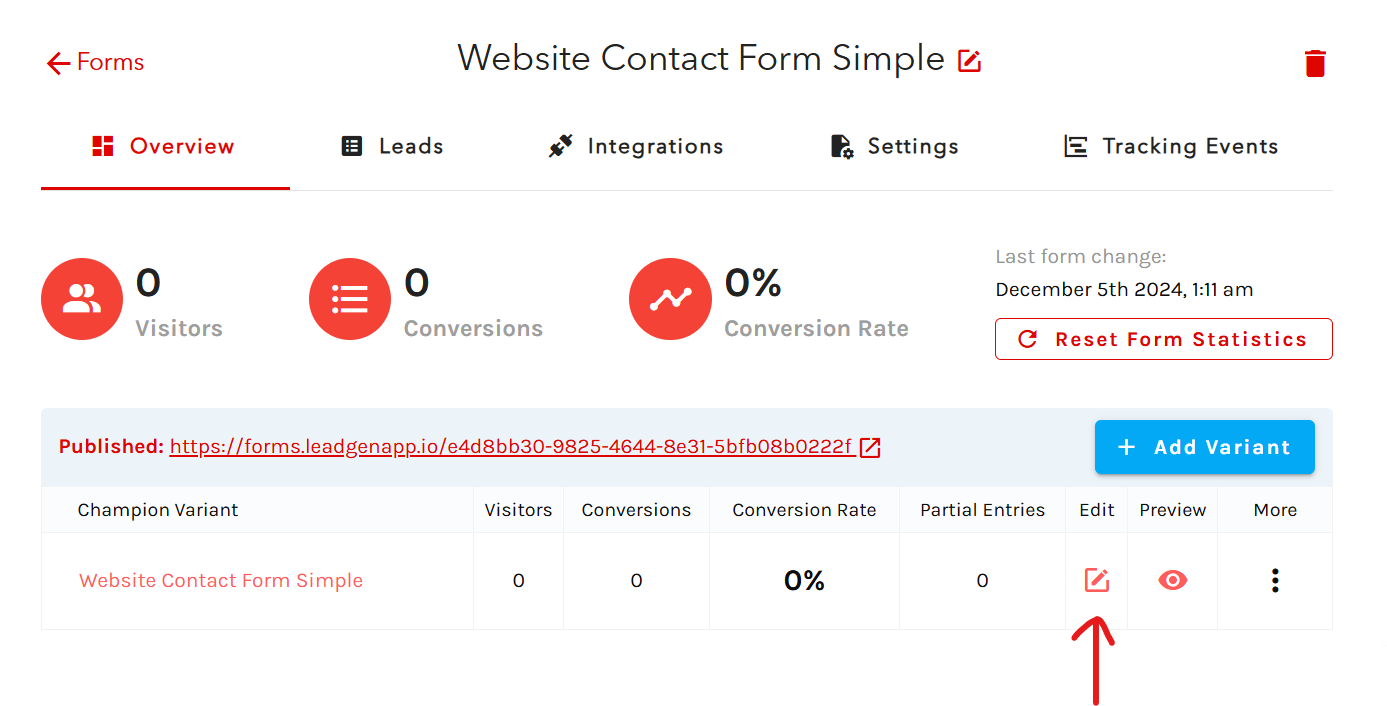
In the sidebar, go to “Forms".

From the list, select the form you want to edit.

Open the edit page.
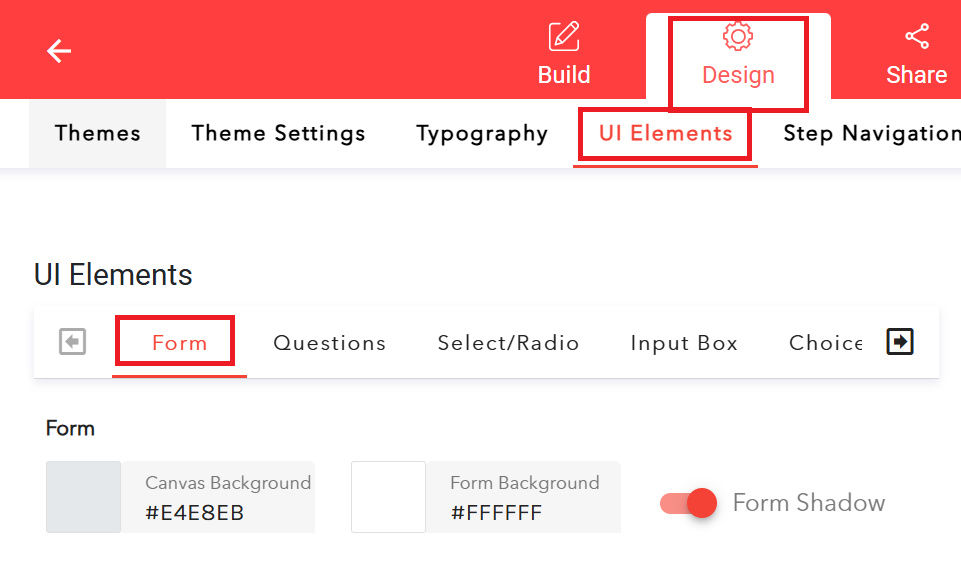
In the header, select the “Design” section. In the new menu showing up under the header, select the fourth tab called “UI Elements”. The first two options on this page will be “Canvas Background Color” and “Form Background Color”.There are two ways to change the values in the boxes. The first one, which is more complicated, is to edit the text in the box and write the HTML code of the color you want.
The second and more straightforward way to change the color is to click on the box on the left and select the color from the picker. Once you make the changes, the preview on the right will change to show exactly how the form looks.
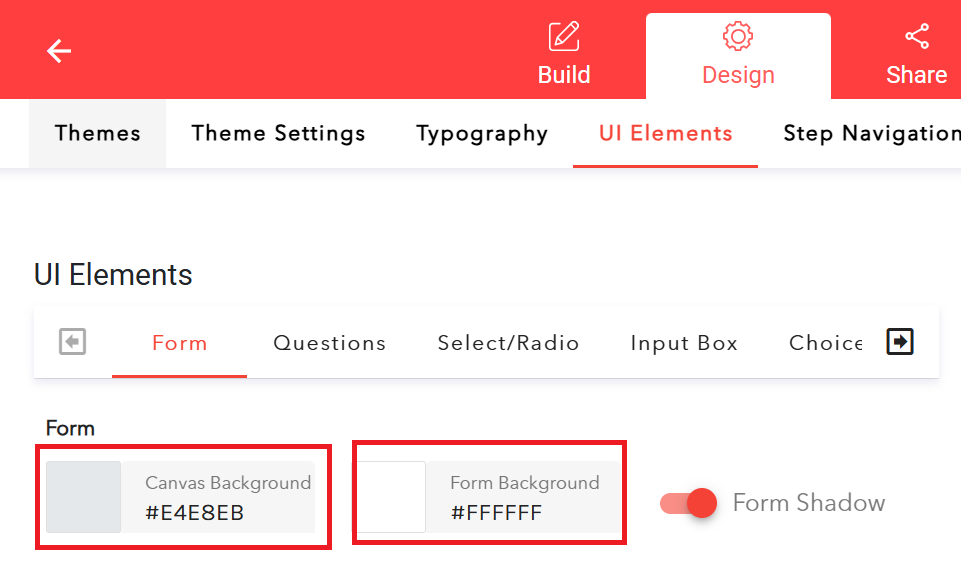
Set the "Canvas Background color" and "Form Background color" of your choice and hit the Save button.

