
Innovating Lead Generation, Serving Businesses & Marketers Worldwide

Here in this guide, you will see how to use your own images or select from an icon library to customize choice questions.
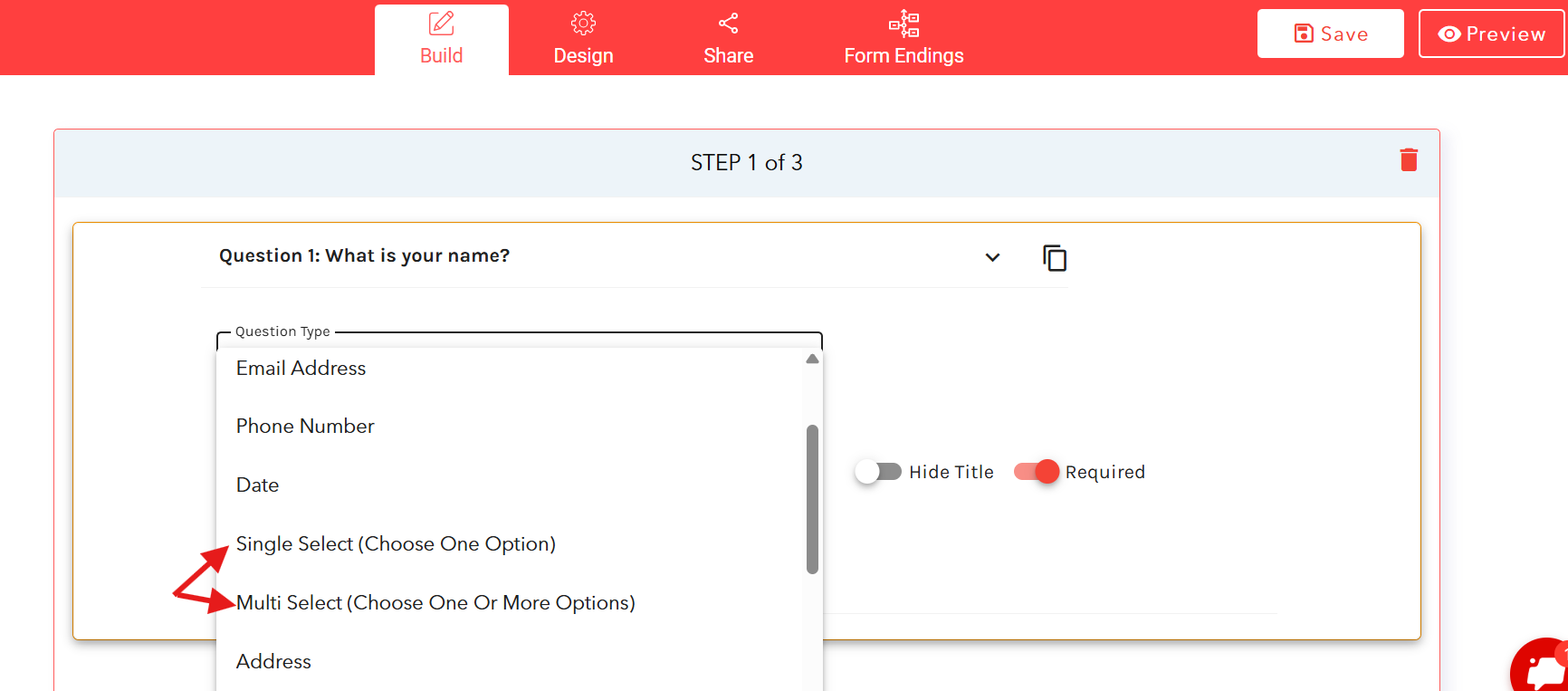
You can customize your multiple-choice/select questions by using images or icons appearing in your choice buttons.

In the
“Question type”
dropdown menu, you can choose between
“Single select”
and
“Multiple select.”
The first type will allow you to pick only one answer from the options available. In contrast, the second one will give users the option to choose as many as they want.
Under the "Skin" dropdown, you have multiple options and can choose "Image" or "Icon."

If you select "Image" as your skin, you can upload images for each choice.

The icon skin type is similar. Here you can choose icons from a library:

In the Design section, there are a lot of customization options for image/icon buttons. To change settings, go to Design, UI elements, and Choice Image/Icon.


