Innovating Lead Generation, Serving Businesses & Marketers Worldwide

How Can I Use Google Powered Address Autocomplete In LeadGen Forms?

Published On:
February 18, 2026

Using autocomplete, your users can fill their address details without the hassle of typing it all manually. Simply set up your app in Google Cloud and add the API Key into your app settings and you are good to go.
Steps to do it

1. Set Up Google Cloud

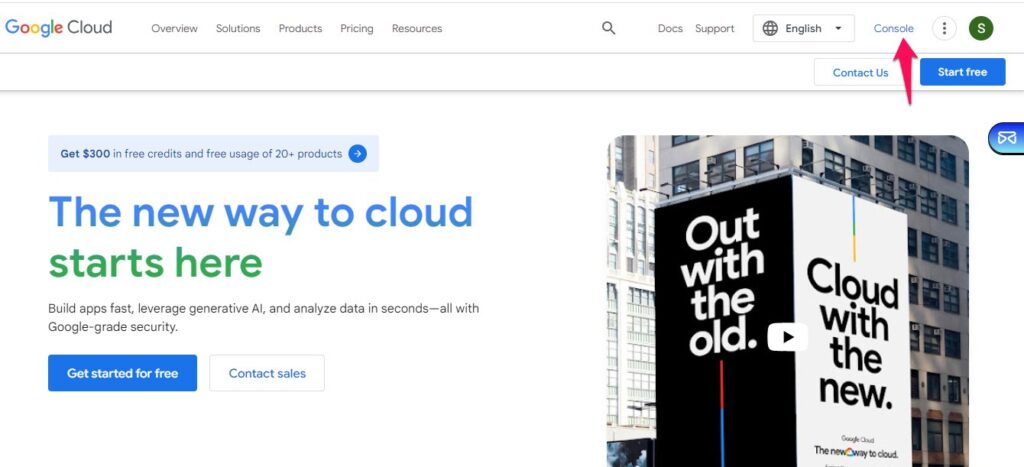
 Navigate to Google Cloud and click on Console

Setting up google cloud

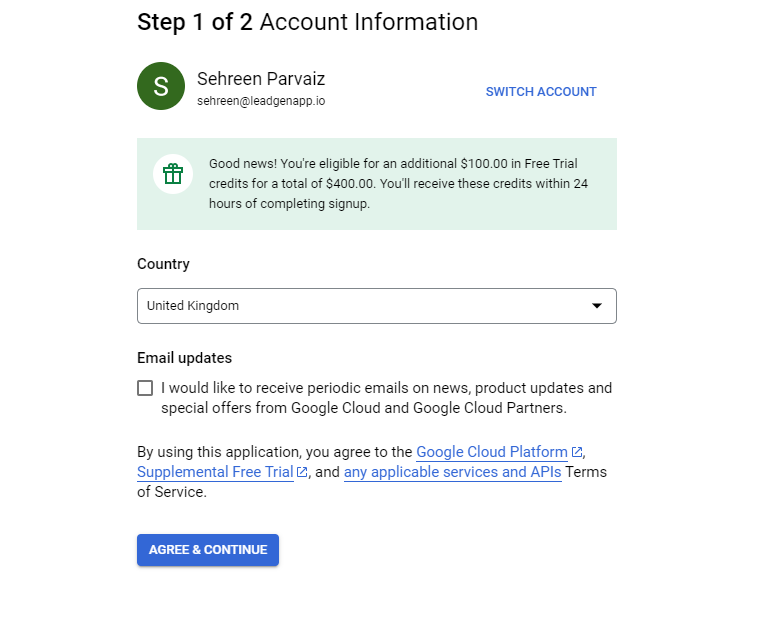
  Select your country and agree to the Terms of Service.

Select your country and agree to the Terms of Service

Billing:

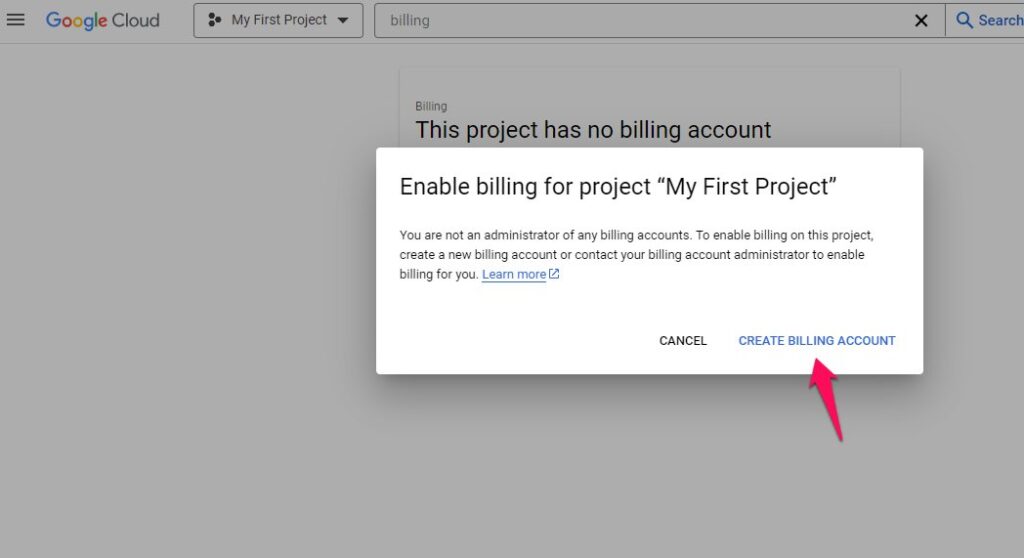
To set up your billing profile, navigate to the “Billing” section and click “Add Billing Account.”

Create billing account

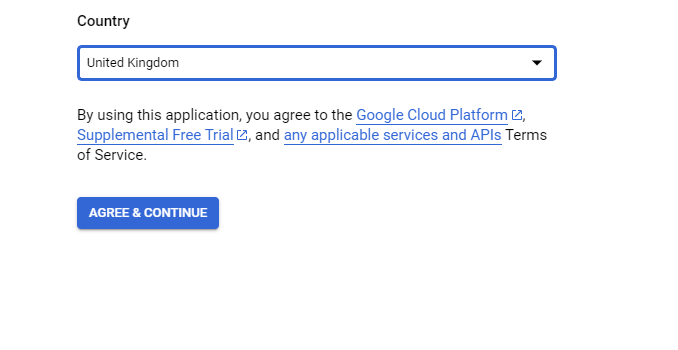
 Select your “Country” and agree to the “Terms of Service”. 

Select your country

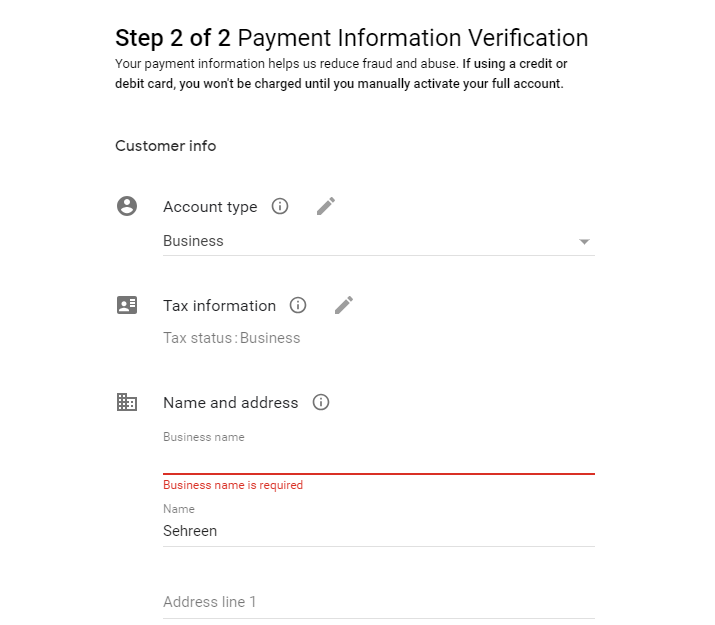
Add your Profile and Payment details.

Payment information verification

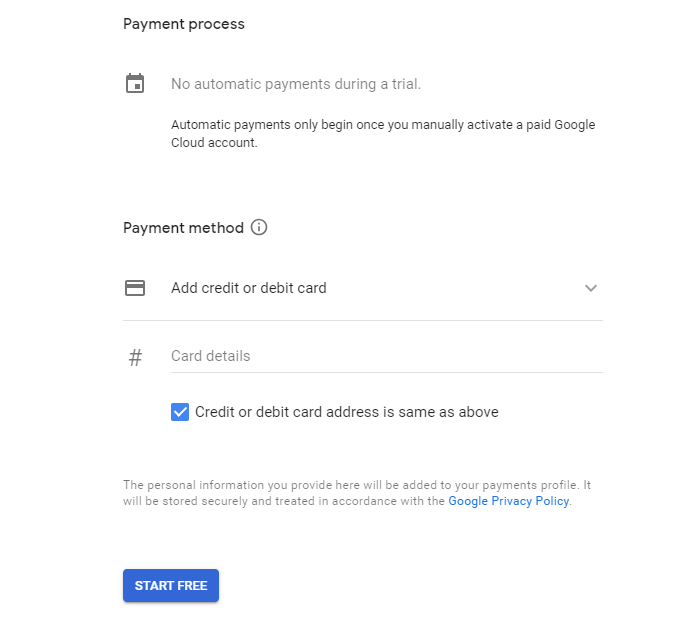
After filling in all the details, click on "Start My Free Trial”.

Payment process

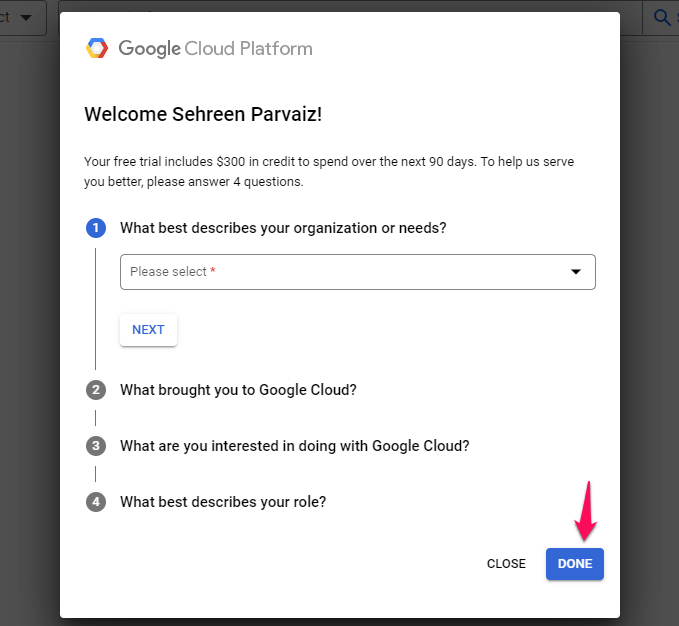
 Answer the following questions and click on “Done”. 

Google cloud platform

Project:

To set up your project in Google Cloud, navigate to the “Dashboard” section and click on “Go to project settings.” 

Go to project settings to create your project

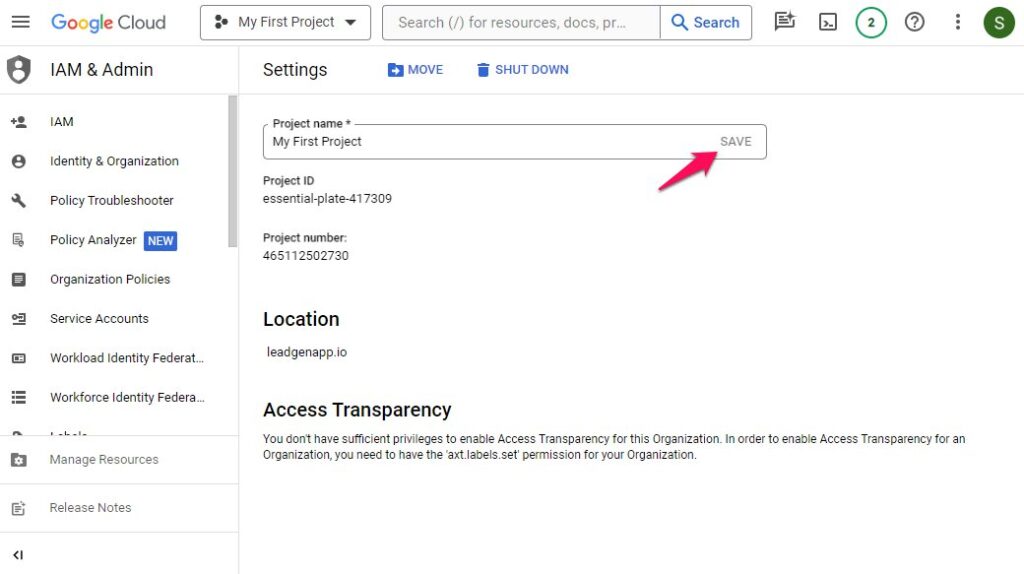
 Set the project name and click on “Save.” You have successfully created your project, & this project is now linked to your billing profile.

Click on save

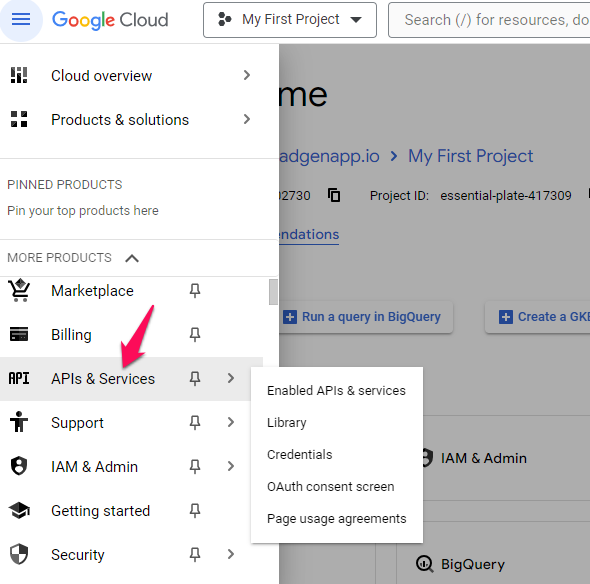
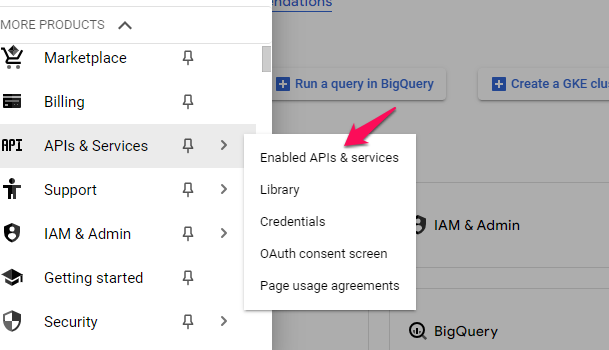
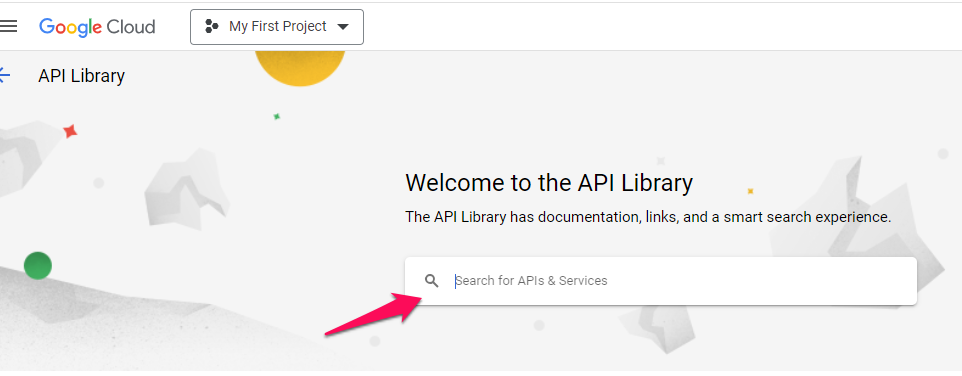
APIs & Services:Navigate to the “APIs & Services> Dashboard” section. Select “Enable APIs & Services”.

Enable APIs and services


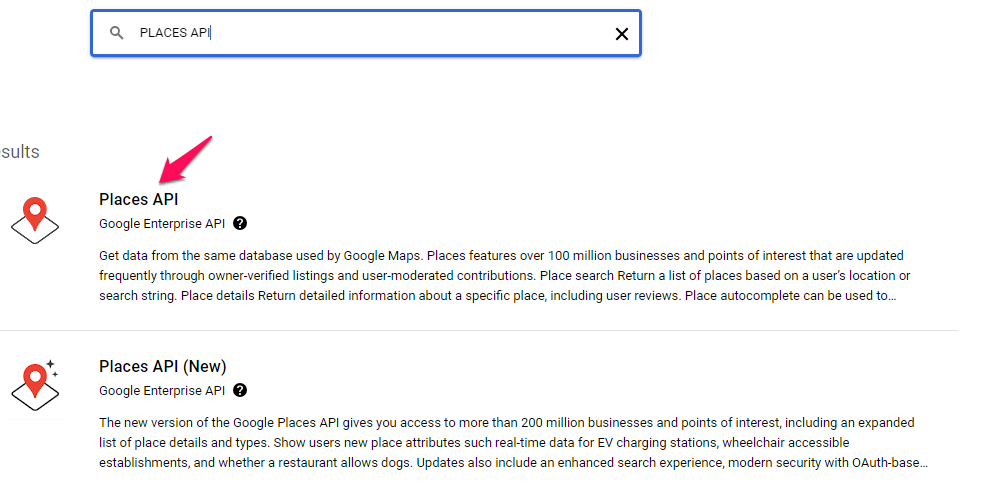
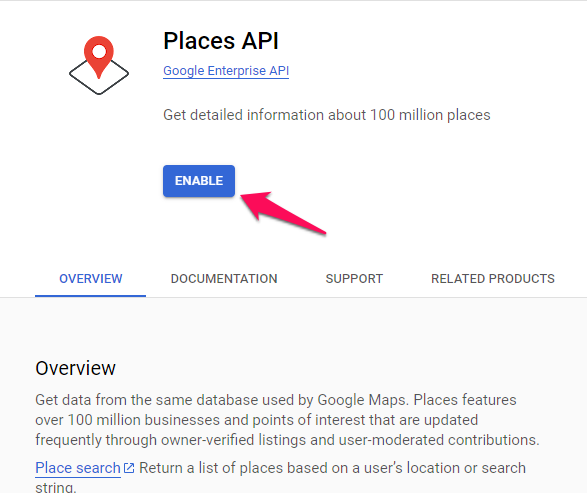
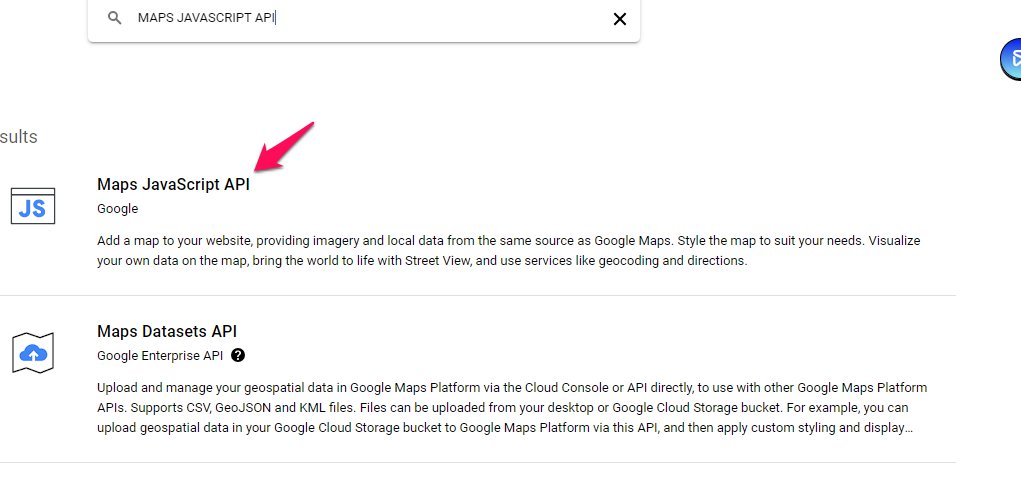
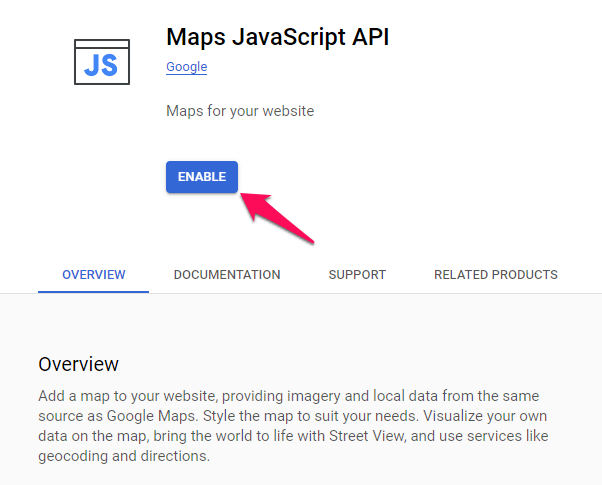
  Search and enable “Places API” and do the same with “Maps Javascript API”. 

Search and enable “Places API” and do the same with “Maps Javascript API”.
Enable Places APIs
Enable Places API
Enable Maps JavaScript API
Maps JavaScript API

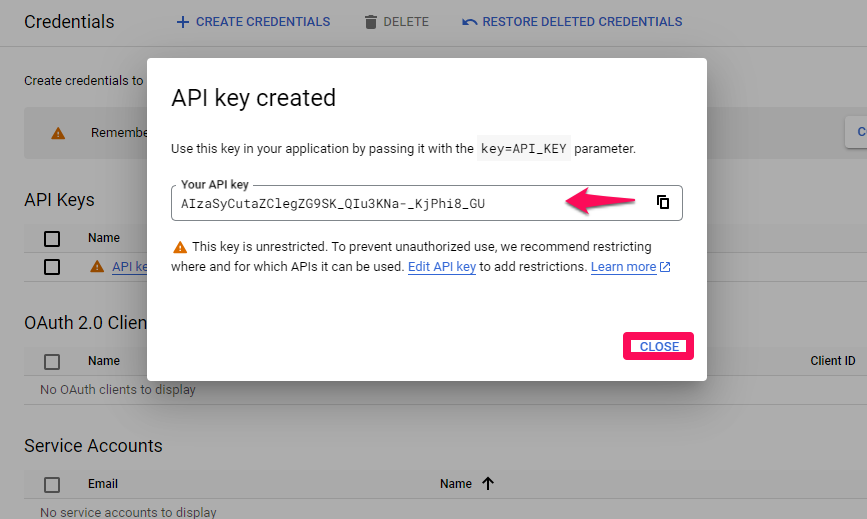
Navigate to the “APIs & Services> Credentials” section. Click on “Create Credentials” and select “API key”. 
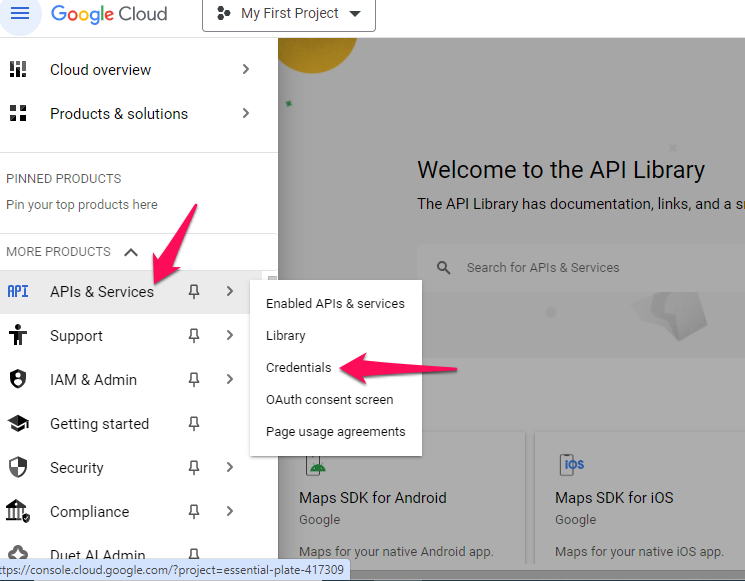
Click on “Create Credentials” and select “API key”
Click on “Create Credentials” and select “API key”.
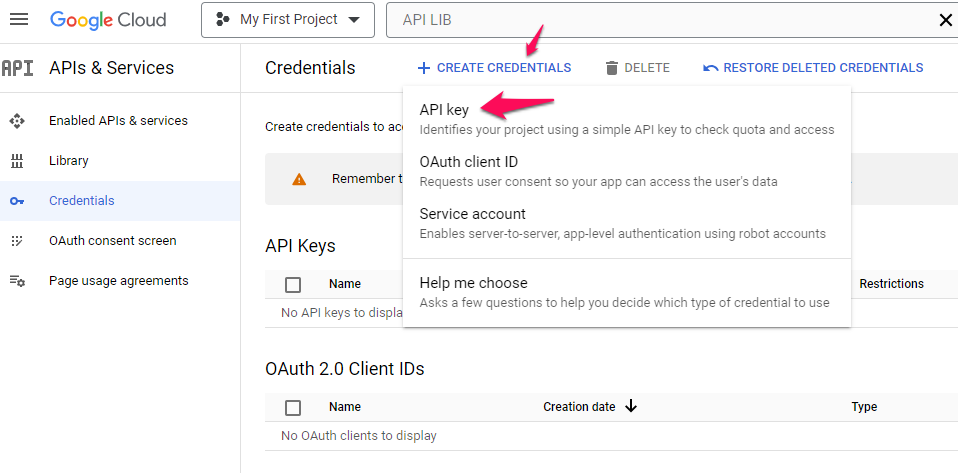
API key created


Note: Please save the API Key for LeadGen App Settings


2. Integrate Google Cloud to LeadGen App:

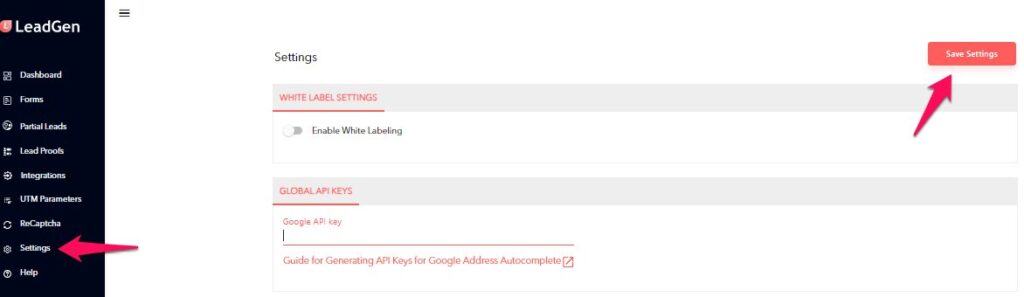
 Go to Settings to add Google API Key

  • Navigate to the “Settings -> Global API Keys” section.
  • Add generated API Key here and click on “save”.


Go to Settings to add Google API Key


Form Build:

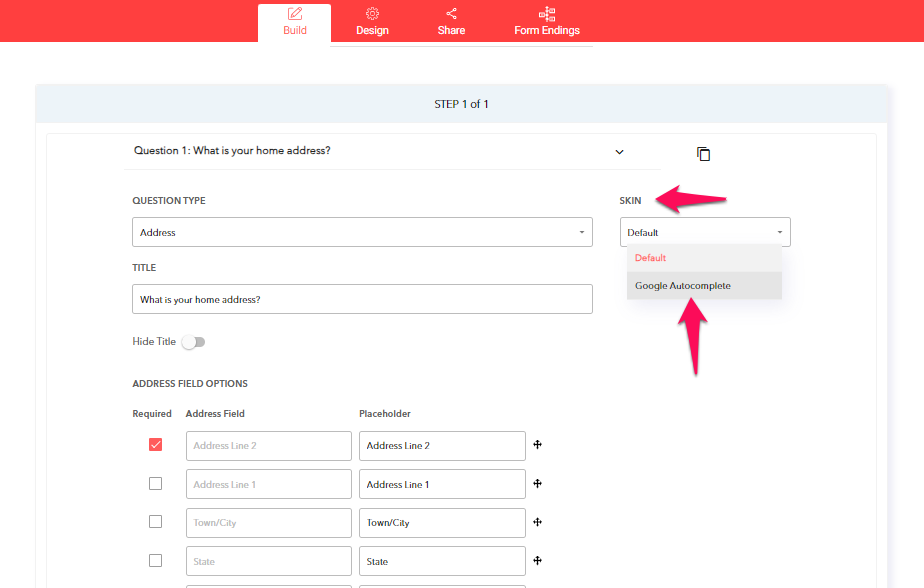
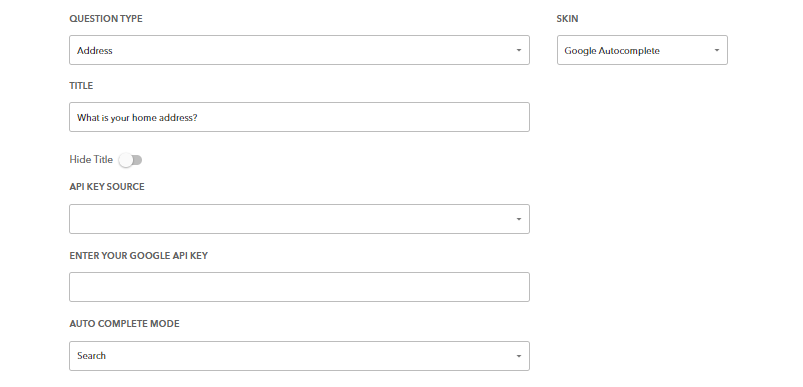
 To enable the Google Autocomplete feature, select “Address type question” and choose the skin type “Google Autocomplete”.
Google autocomplete


Google autocomplete

Next select “Global API Key” in API Key Source. Now select “Google API Key” in Choose Google API Key.
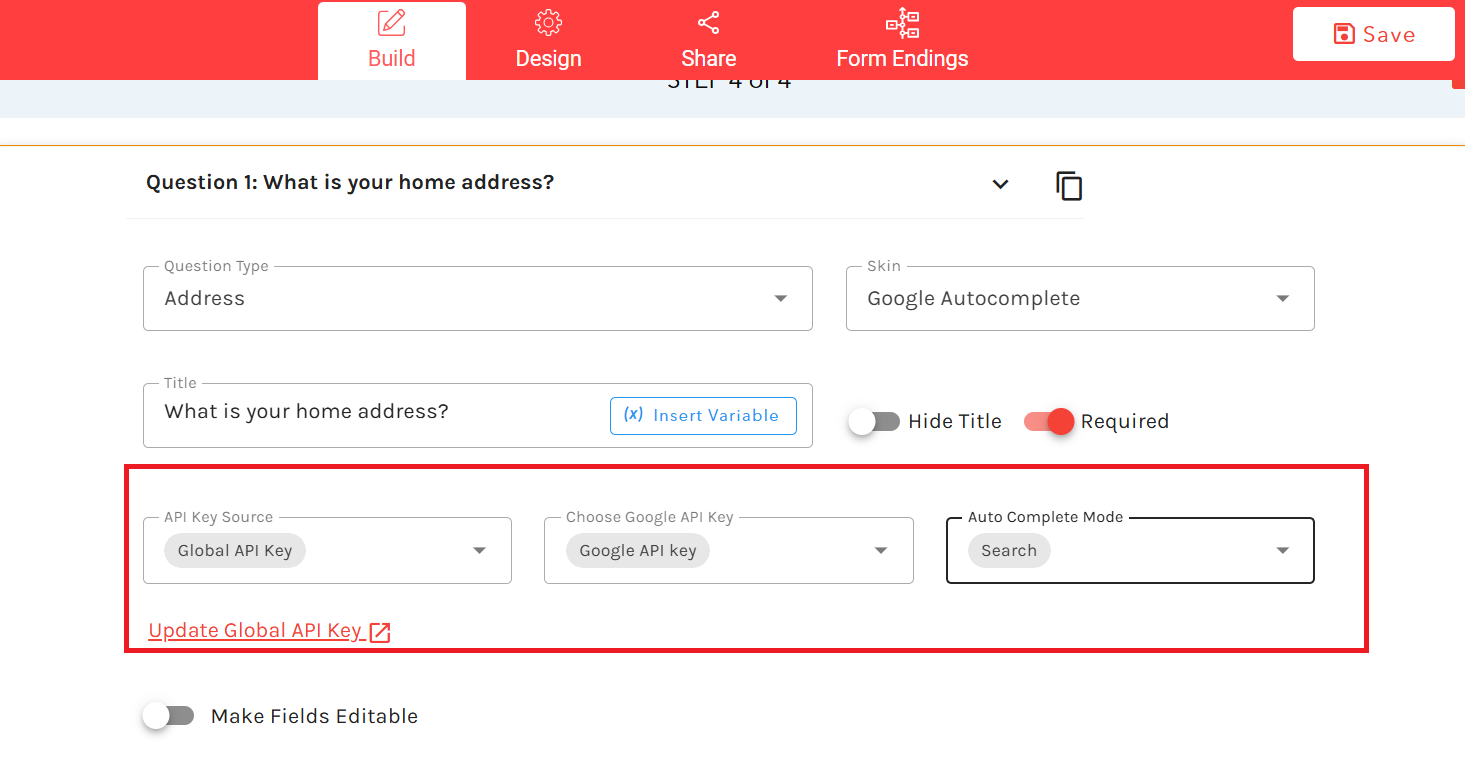
Global API key

  Under the "Auto Complete Mode" dropdown, you have multiple options, including "Manual" or "Search.
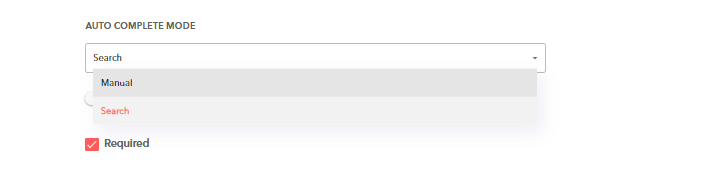
Under the drop-down menu choose from manual or search

Here is how the address type question with “Auto Complete Mode - Search” looks on the form.
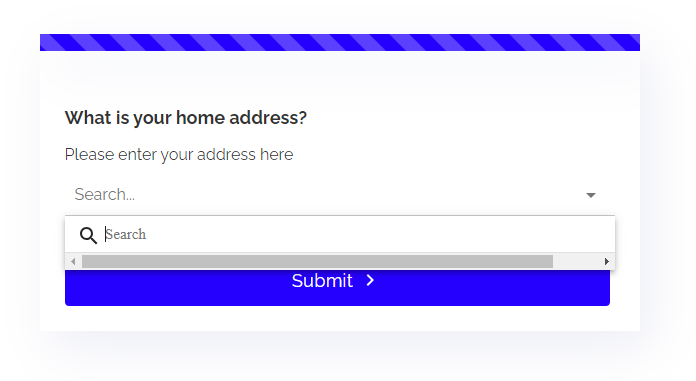
Auto Complete Mode - Search” looks on the form.

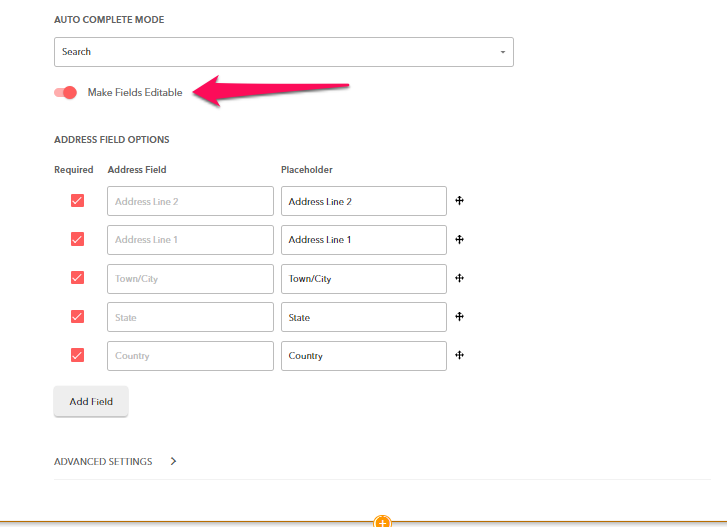
If you go back to the question settings and turn on the “Make Fields Editable” option, you can Enable/Disable Address Fields. Using this, you can make changes to the address fields. 
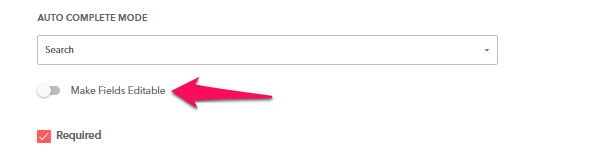
Turn on the “Make Fields Editable” option, you can Enable/Disable Address Fields.


Make fields editable

Here is how the address type question with “Auto Complete Mode - Search” with enabled “Make Fields Editable” option looks on the form:
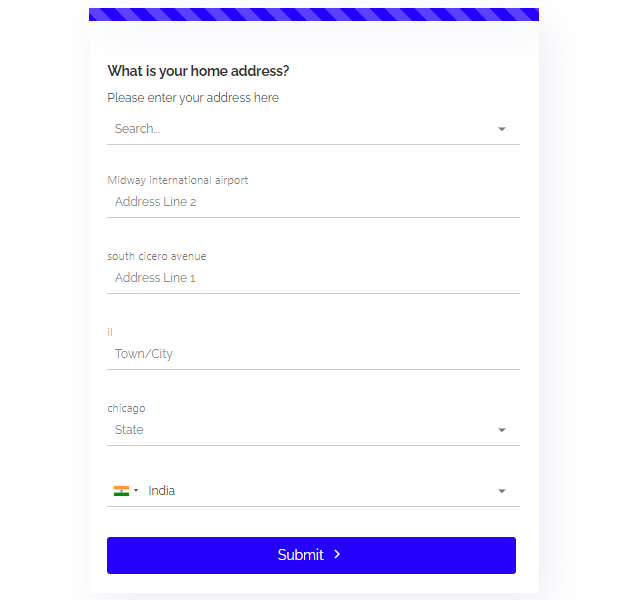
“Auto Complete Mode - Search” with enabled “Make Fields Editable” option looks on the form

Here is how the address type question with “Auto Complete Mode - Manual” looks on the form:
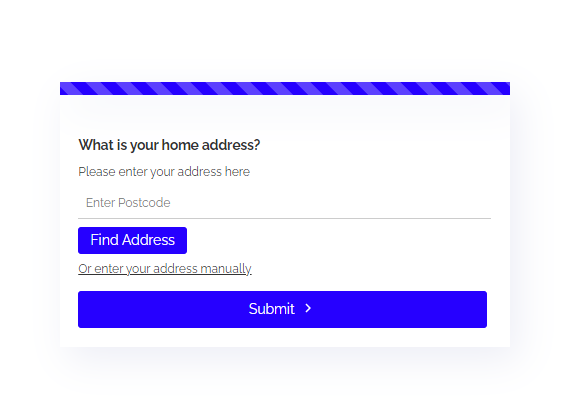
Auto Complete Mode - Manual” looks on the form

Any Question Left?

Message us via the chat window in the bottom right of the page and we will answer any of your questions!
Get In Touch