
Innovating Lead Generation, Serving Businesses & Marketers Worldwide

With Zapier integration, you can automate your workflows by connecting your LeadGen forms with thousands of apps—like Gmail, Slack, HubSpot, or Google Sheets—in just a few clicks.Follow these simple steps to set up the integration:Log in to your LeadGen account. Go to the forms section and select the form you want to integrate.
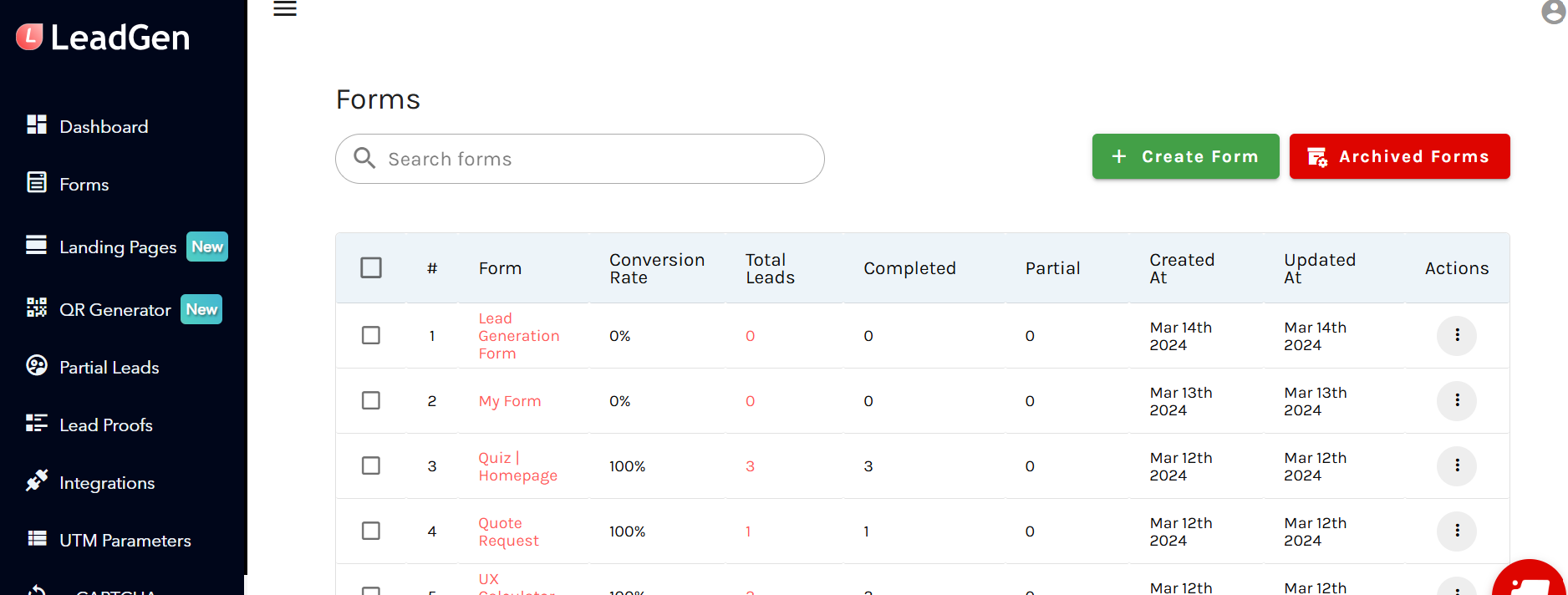
Go to Integrations and click on the Add integration button.
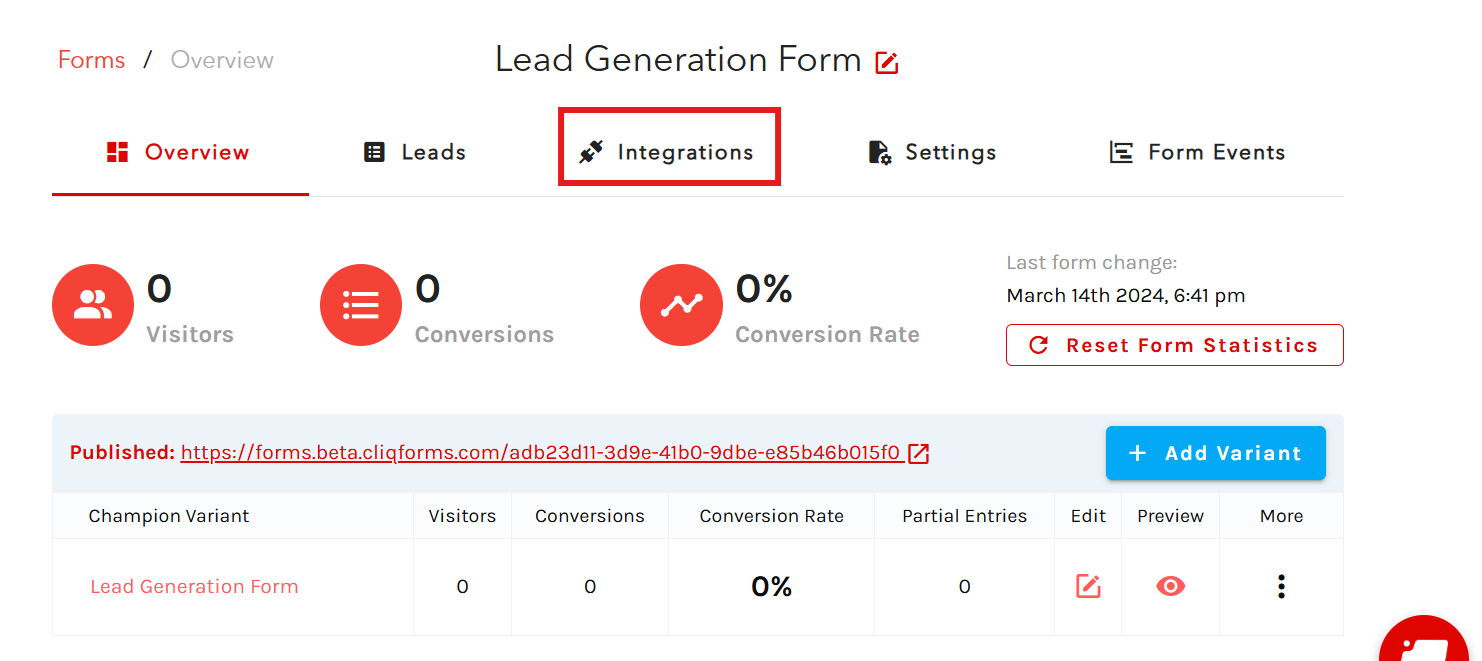
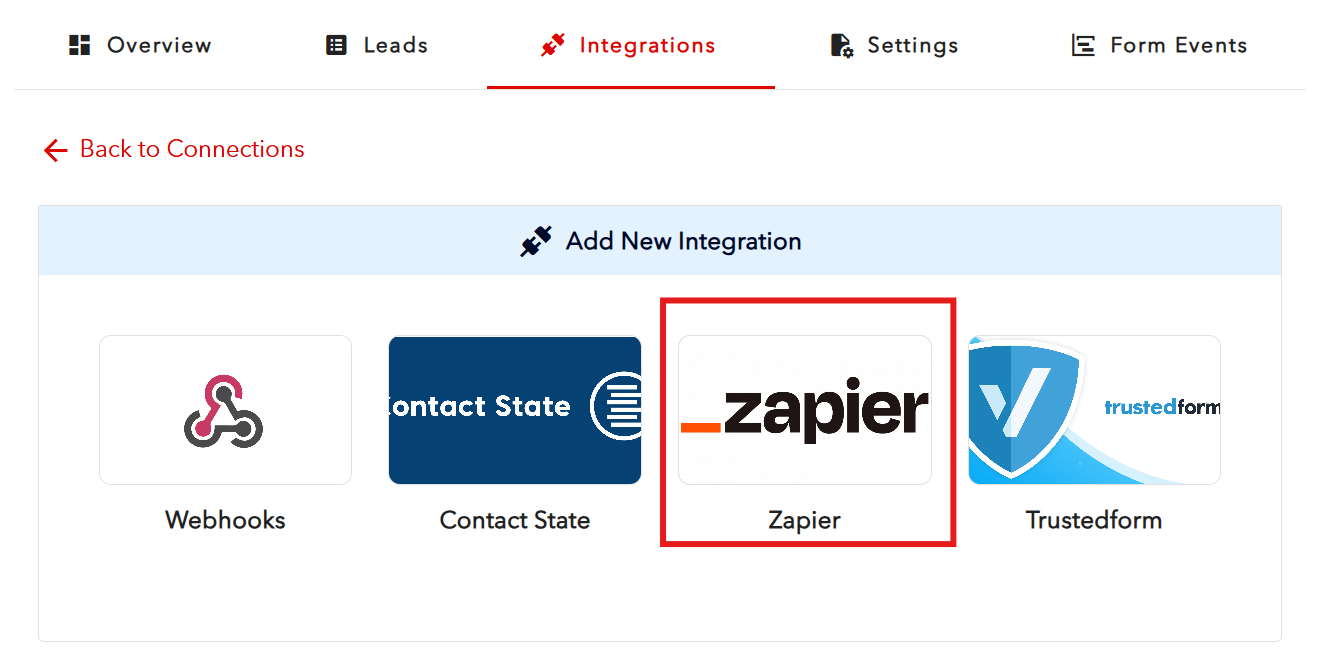
Now, click on Zapier to start the integration.
A new window will open, prompting you to log in to your Zapier account.
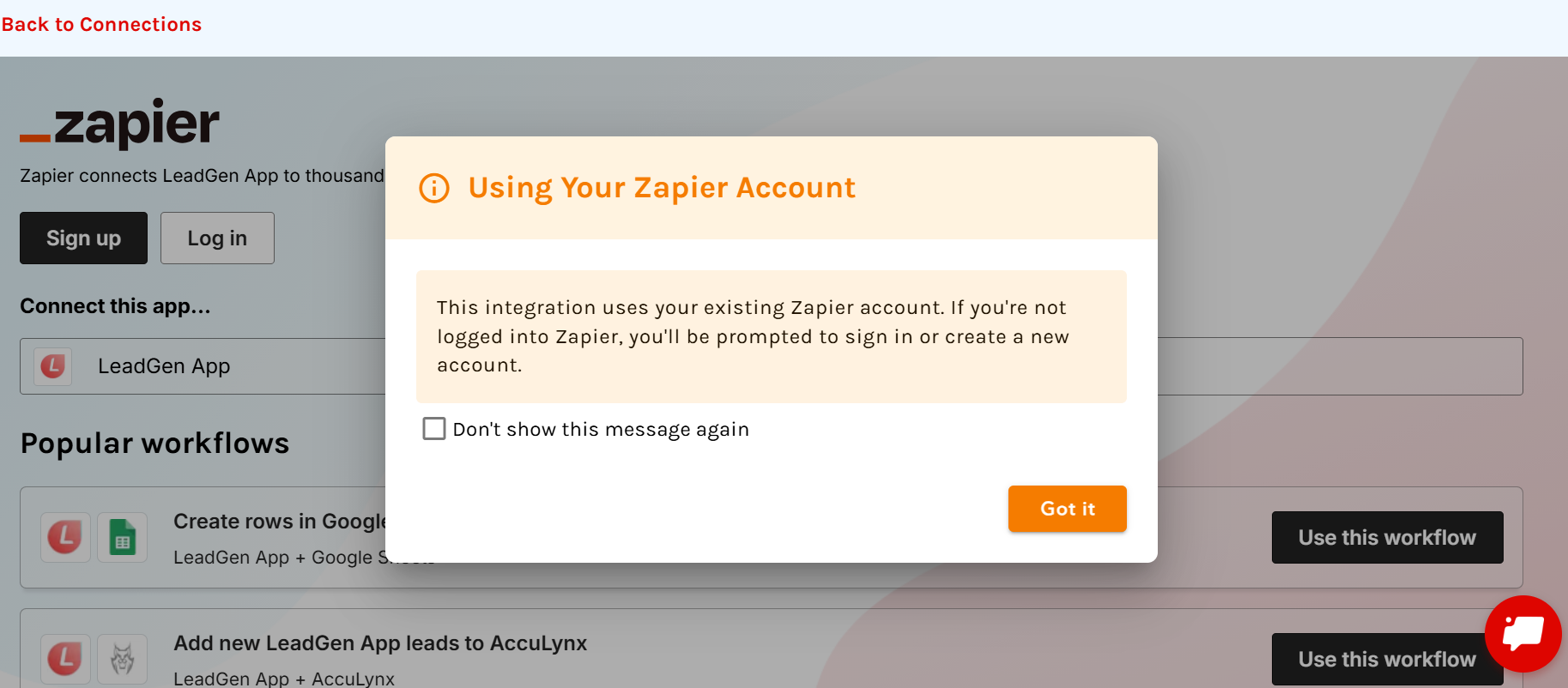
If you already have a Zapier account and are logged in in another tab of your browser, you’ll be logged in automatically and can start connecting your apps.If you already have a Zapier account and are not logged in in any other tab of your browser, you can log in using the Log In button.If you’re new to Zapier: Click Sign Up on the same window to create your Zapier account — it only takes a minute.Once logged in, you’re ready to start creating workflowsSelect LeadGen App as your trigger app.
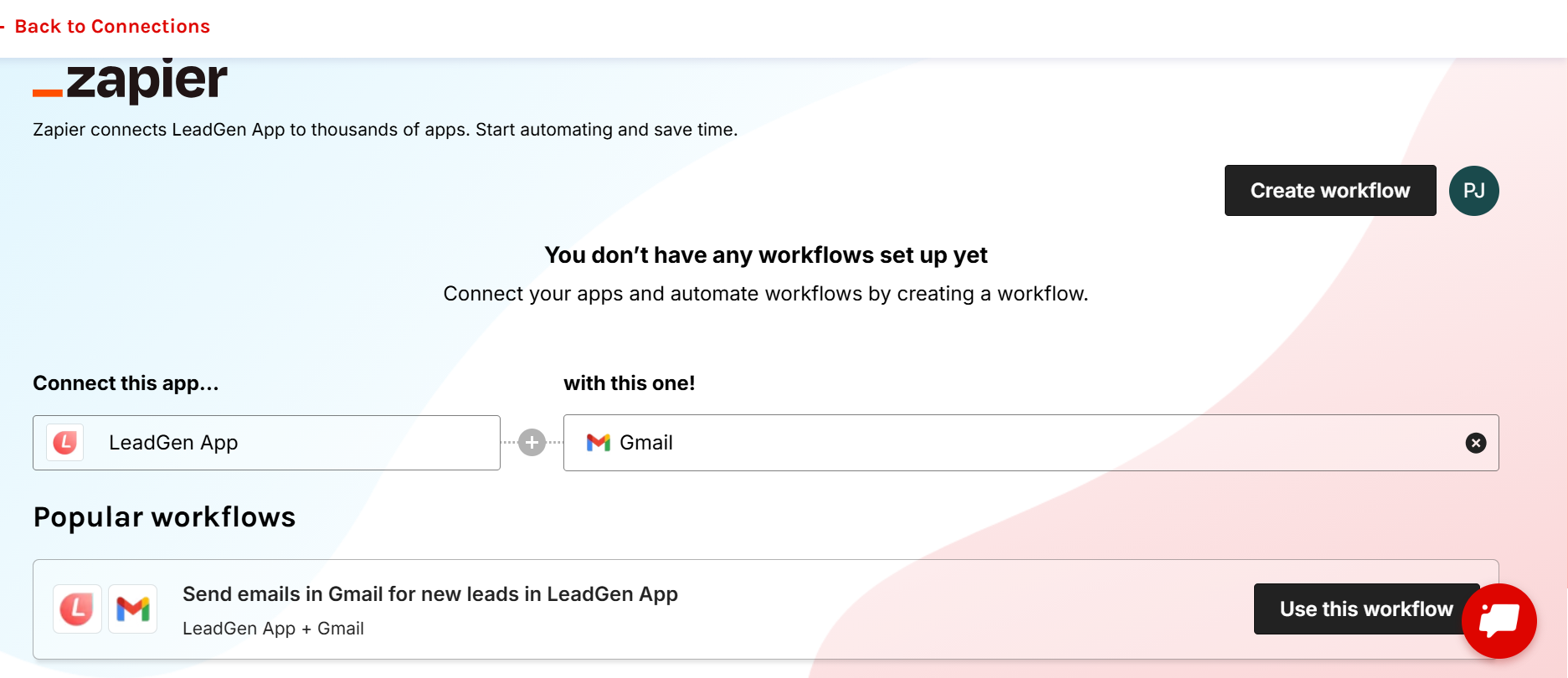
Choose the app you want to connect with (for example, Gmail, Slack, or Google Sheets).Follow the prompts to finish setting up your automation (Zap). That’s it!Your LeadGen form is now connected to Zapier. Every time a new lead is submitted, your chosen app will automatically receive the data—no manual work needed!Tip: You can create multiple Zaps for different forms and apps to automate your marketing, notifications, and lead management tasks effortlessly.

