
Innovating Lead Generation, Serving Businesses & Marketers Worldwide

LeadGen Forms offers powerful URL-based prefilling and personalisation features that allow you to: - Pre-fill form fields with data from URL parameters - Personalize the user experience with dynamic greetings and messages - Hide fields when values are provided via URL - Capture hidden data from URL parameters without showing fields to usersThese features are perfect for: - Email campaigns (pre-fill subscriber information) - Ad campaigns (track source and pre-fill known data) - Personalized landing pages (greet users by name) - Multi-step funnels (pass data between pages)
Form prefilling automatically fills in form fields based on URL parameters. This creates a better user experience by reducing the amount of typing required.
Step 1: Set the Field NameOpen your form in the editor. Choose any question you want to apply this feature to. Now scroll down to Advanced Settings and find the Field Name (used for URL parameters).Enter a unique name (e.g., first_name, email, phone)
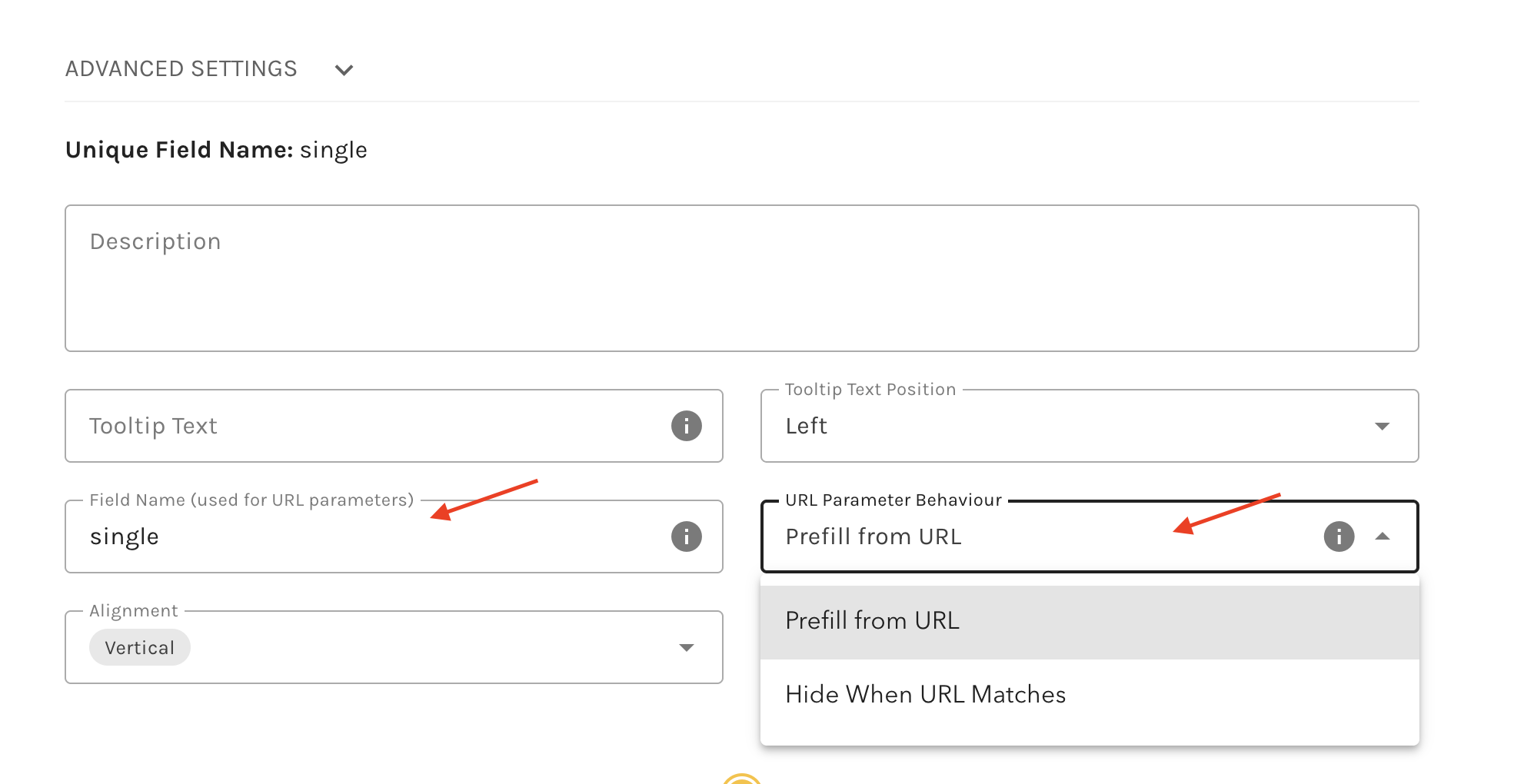
Step 2: Add URL ParametersUse the field name in your URL with the value you want to pre fill. https://yoursite.com/form?first_name=John&email=john@example.comStep 3: Test Your FormOpen the URL in your browser and watch the fields auto-populate!
Good Field Names:- first_name- email_address- phone_number- company_name- job_titleBad Field Names:- First Name (has space)- email@address (special character)- Phone# (special character)
Hidden fields capture data from URL parameters without displaying input fields to users. They’re perfect for: - Tracking campaign sources - Storing referral codes - Capturing user IDs - Personalising content with Answer Piping
Step 1: Create Hidden Fields
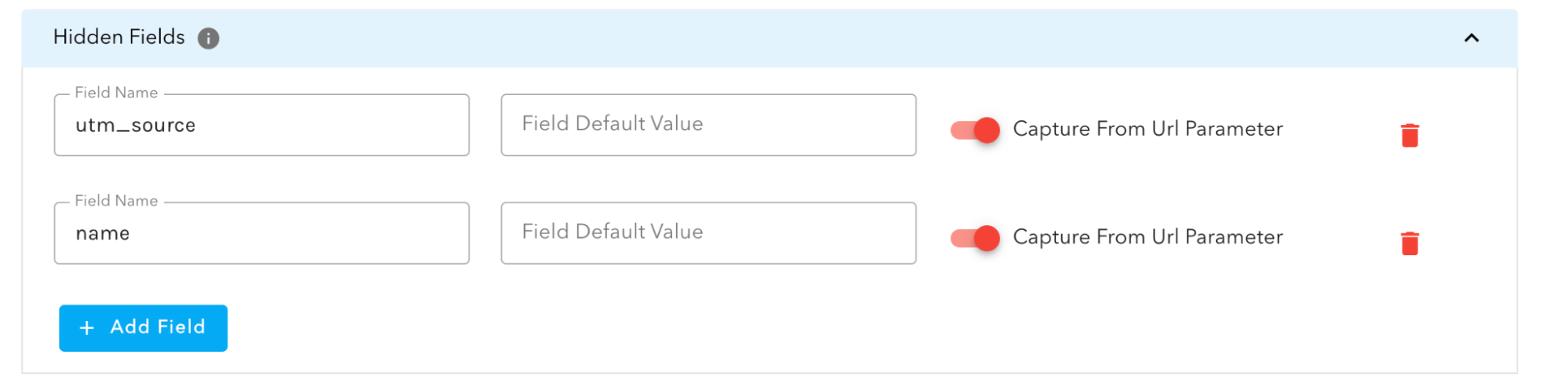
Scenario: You’re sending an email campaign to your subscribers.Setup:1. Create hidden fields: first_name, email, campaign_source2. Add to your welcome message: "Hi {{first_name}}, thanks for your interest!"3. Build your email links:https://yoursite.com/form?first_name=Emma&email=emma@example.com&campaign_source=newsletter_jan_2024Result: - User sees: “Hi Emma, thanks for your interest!” - Form captures: email and campaign_source in the background - User only fills in missing information
Instead of showing pre-filled fields to users, you can completely hide questions when values are provided via URL. This creates a cleaner, shorter form experience.
Step 1: Set the URL Parameter BehaviourOpen your form in the editor and click on the question you want to configure. Now scroll to Advanced Settings and find the URL Parameter Behavior dropdown. Now select your preferred option:
Step 2: Set the Field NameMake sure the question has a Field Name set (as described in the Form Prefilling section).Step 3: Test with URL ParametersExample with "Prefill from URL":https://yoursite.com/form?email=john@example.comResult: Email field is visible and pre-filled with "john@example.com"Example with "Hide When URL Matches":https://yoursite.com/form?email=john@example.comResult: Email field is completely hidden, value is captured in the background
These question types work with both prefilling and hiding:
?subscribe=yes?subscribe=noAccepted values:For "Yes": yes, true, 1For "No": no, false, 0
?address_line_1=123 Main Street?address_line_2=Apt 4B?address_city=San Francisco?address_state=California?address_country=United States?address_post_code=94102
- In the example above, the address serves as the field name. Therefore, the fields should follow this format: {address}_line_1. The first part can be any string you define, but you must adhere to the specified format. E.g, my_address_state=California&my_address_country=United States
- Field names are based on your address field configuration- Country matching is case-insensitive (India, India, INDIA all work)- To hide the address question, ALL enabled fields must have values
These question types do NOT support URL prefilling:
Goal: Pre-fill subscriber information from your email list
Setup:
Hidden Fields:
- subscriber_id
Form Questions:
- first_name (Prefill from URL)
- company (Prefill from URL)
- phone (Prefill from URL)
- message (NOT prefilled)
Welcome Message:
"Hi {{first_name}}, tell us more about your needs!"
Email Link:
https://yourform.com/contact?
subscriber_id=12345&email=sarah@company.com&first_name=Sarah&company=Acme Corp&phone=555-0123
User Experience:
1. Opens form from email
2. Sees: “Hi Sarah, tell us more about your needs!”
3. Form shows first name, company, and phone already filled
4. Only needs to type their message 5. Submits form quickly
What You Capture: - subscriber_id: 12345 (hidden) - email: sarah@company.com (hidden) - first_name: Sarah (pre-filled, editable) - company: Acme Corp (pre-filled, editable) - phone: 555-0123 (pre-filled, editable) - message: (user typed)
Goal: Pass data from the landing page to the form on another page
Setup:
Page 1 (Landing Page):
<a href="https://yourform.com/signup?industry=Healthcare&company_size=50-100&interest=Software">
Get Started</a>
Page 2 (Form):
Hidden Fields:
- industry (captured from URL)
- company_size (captured from URL)
- interest (captured from URL)
Form Questions:
- first_name
- phone
- message
Welcome Message:
"We help {{industry}} companies like yours succeed!"
User Experience:
1. Lands on page, clicks “Get Started”
2. Sees form with: “We help Healthcare companies like yours succeed!”
3. Fills in personal information
4. Submits
What You Capture: - All the context from the landing page (industry, company_size, interest) - Personal contact information from the form

